


Booking Overview: Manage Appointments
The Appointment Overview page is the booking hub for the clinic. Use it to view doctor and consultation-room schedules within business hours, create appointments for any combination of new or returning owners and pets, edit or cancel appointments, and reorder the doctor list shown on the calendar.
How to access
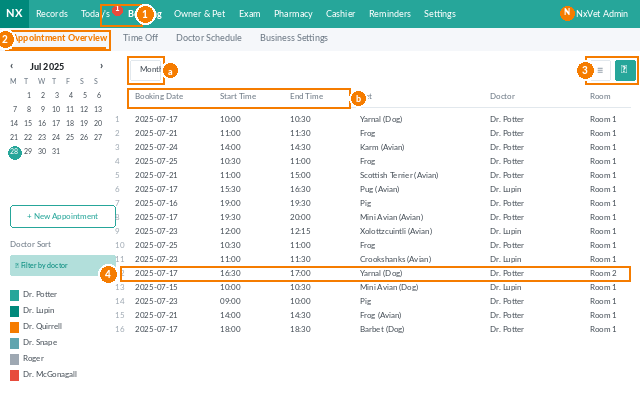
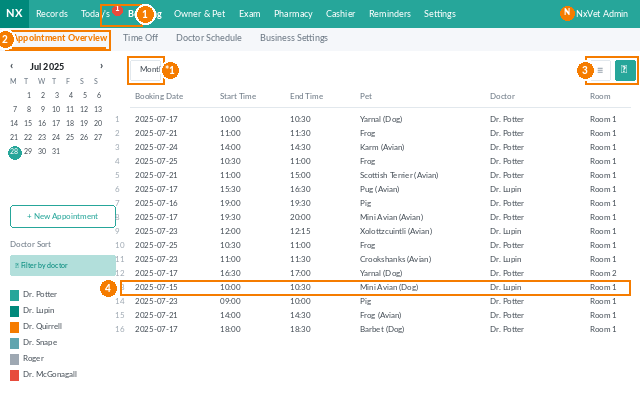
- From the main menu, click Appointments.
- Click Appointment Overview.
- Switch between three views using the icons on the right: Calendar (Month), Daily Calendar (Day), and Appointment List.
Switching views
- Calendar (Month) — see every doctor’s appointments across the whole month at a glance.
- Daily Calendar (Day) — focus on one day’s schedule per doctor or consultation room.
- Appointment List — flat list view, sortable by date or start time.
On all views you can:
- Filter by Morning / Afternoon / Evening.
- Toggle Doctor vs. Consultation Room mode (doctors with appointments appear in blue text).
- Check Hide doctors without appointments to reduce noise.
- Check Show unscheduled / doctor’s day off to see everyone, including off-duty staff.
Adding a new appointment
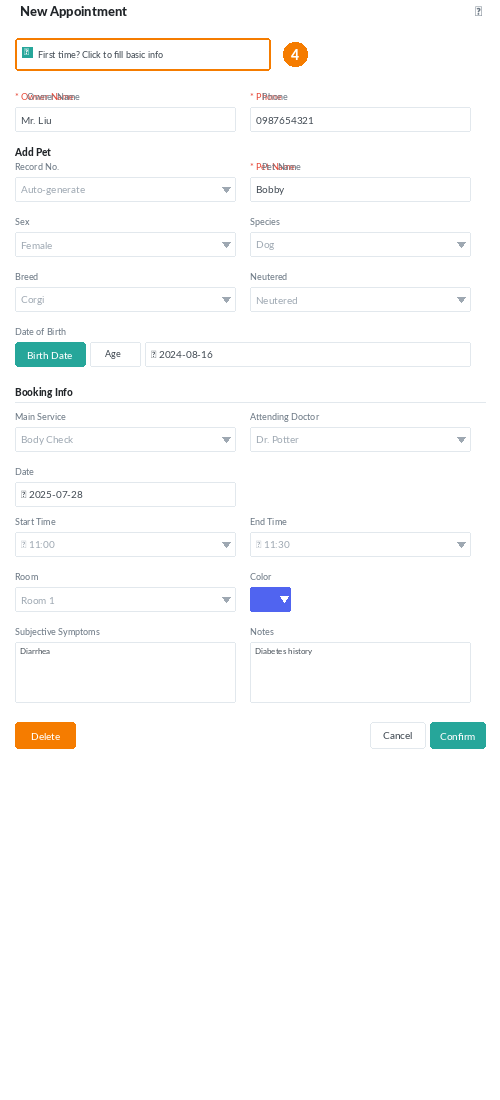
Click Add Appointment, then pick the owner/pet scenario:
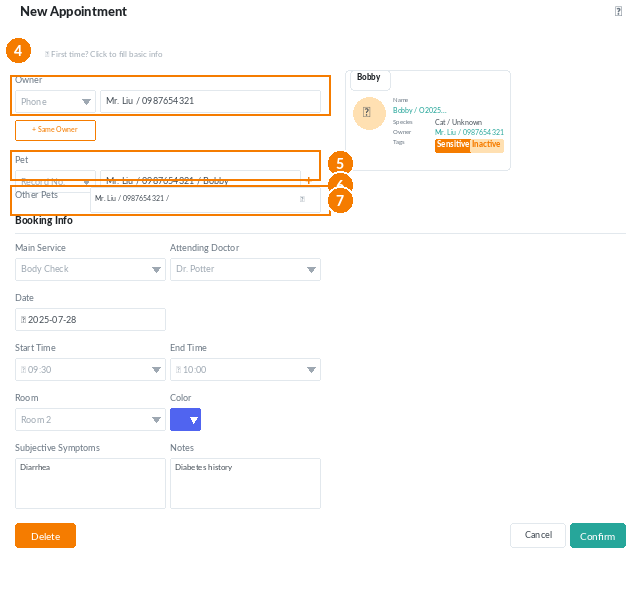
- New owner, new pet — click First-time visitor and fill in owner name, phone, and pet name (required), plus species, breed, gender, and DOB (recommended).
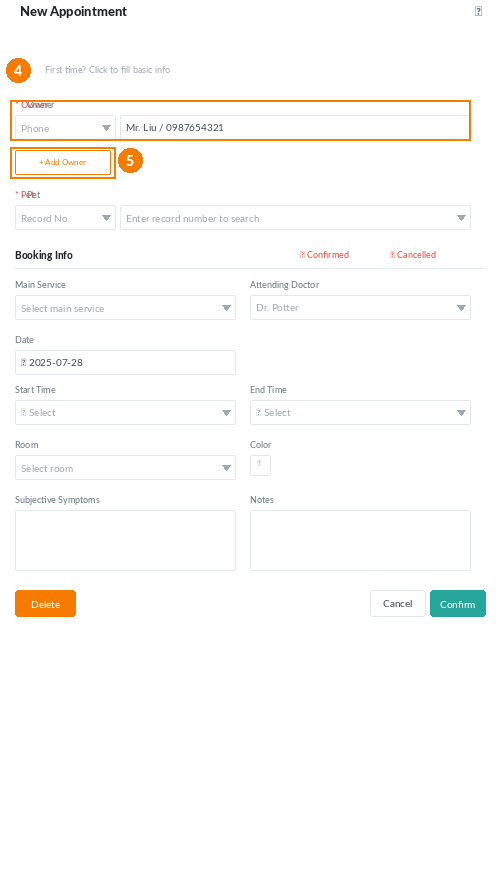
- Existing owner, new pet — search the owner by phone or name, then click Add New Pet for Same Owner.
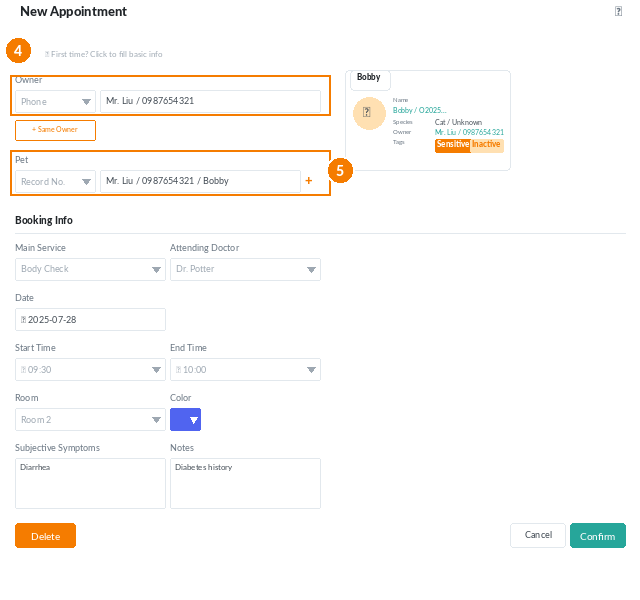
- Existing owner, existing pet — search the owner, pick the pet from the list. The pet’s profile auto-fills on the right.
- Multiple pets in one appointment — click the blue button beside the pet field to add more pets for the same owner.
For every scenario, fill in the required appointment fields: Main Service, Start Time, and End Time. The system blocks overlapping slots automatically.
Optional appointment fields
- Attending Doctor — assign a specific vet.
- Date — defaults to today; change if needed.
- Consultation Room — book a specific room.
- Color — visual tag for the calendar.
- Subjective Symptoms — what the owner reported by phone; gives the vet a head start.
- Remarks — any other notes.
Adding appointments directly from the calendar
- On Calendar or Daily Calendar view, click an empty slot in the desired doctor or room row.
- To book a consultation room instead of a doctor, check the Consultation Room toggle first.
- Continue with the new-owner / existing-owner flow above from step 4.
Editing or deleting an appointment
- Edit — click any appointment in any view; the edit panel opens. Adjust the service, time, room, vet, color, symptoms, or remarks.
- Delete — click the appointment, then click Delete.
Reordering doctors on the calendar
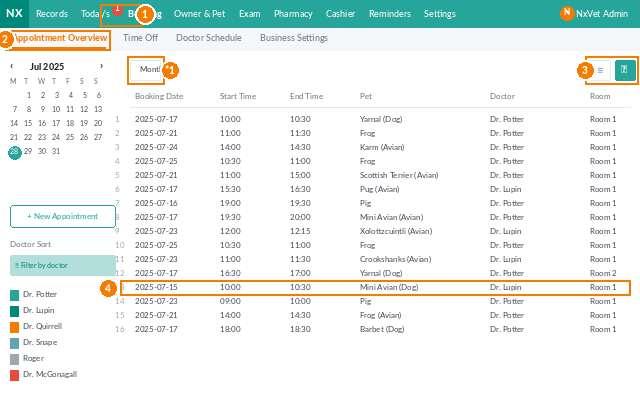
- Click Doctor Sorting.
- Drag rows up or down to the position you want.
- Click Confirm to save the order. The calendar columns reorder immediately.
Tip
If a clinic regularly books long procedures, set Color tags by service type (e.g., red for surgery, blue for vaccination). Reception staff can scan the calendar at a glance and spot scheduling clashes before they happen.