

Pharmacy: Dispensing Prescriptions & Controlled Drugs
The Pharmacy page is the central dispensing queue for the clinic. It groups every prescription written by the vets into three tabs — outpatient, medication pick-up (chronic refills), and surgical — plus a dedicated tab for tracking controlled-drug history.
How to access
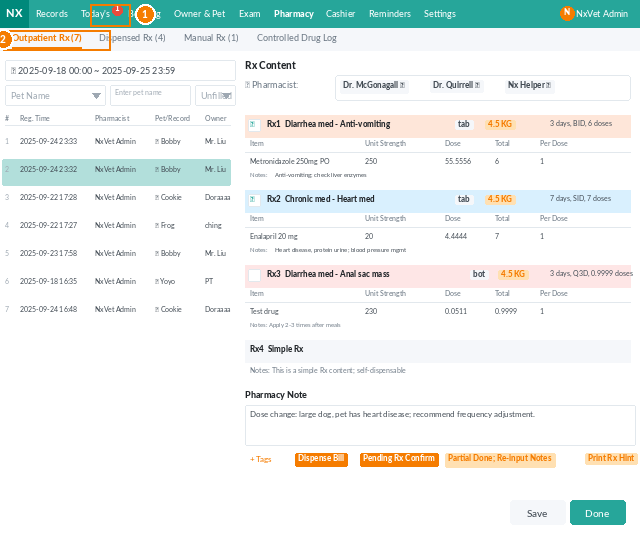
- From the main menu, click Pharmacy.
- Switch between the four tabs:
- Outpatient Prescriptions — same-day medication.
- Medication Pick-up Prescriptions — chronic-disease refills.
- Surgical Prescriptions — pre- and post-op meds.
- Controlled Drug Details — audit trail for scheduled drugs.
Filtering the queue
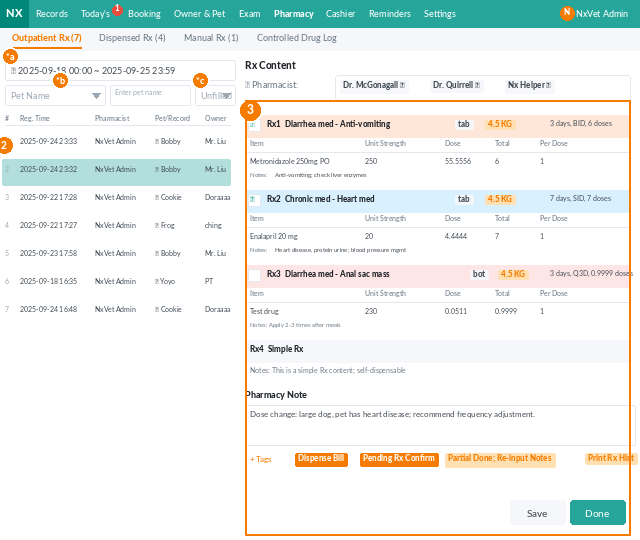
- Switch the time period to view today, this week, or a custom range.
- Search by pet name or medical record number.
- Toggle between not yet dispensed and already dispensed.
Dispensing a prescription
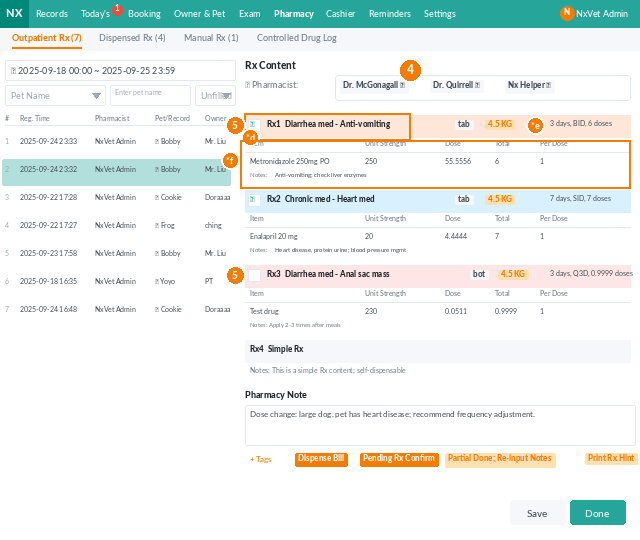
- Click the prescription you want to dispense; the details panel opens on the right.
- You can click any blue hyperlink (pet name, owner name, medical record number) to jump to the source record.
- Pick one or more Dispensing personnel.
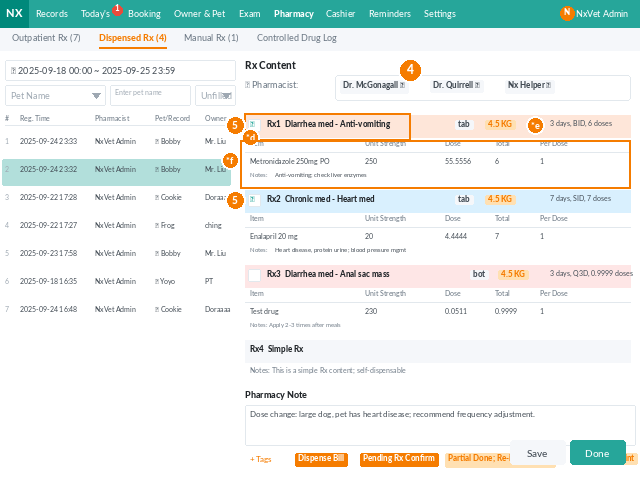
- Check off the dispensed Rx as you prepare each item. The panel shows:
- Rx name + dosage form + pet weight (as tags).
- Days, frequency, and quantity for the whole course.
- Drug name, unit content, dose, total amount, amount per administration, and remarks.
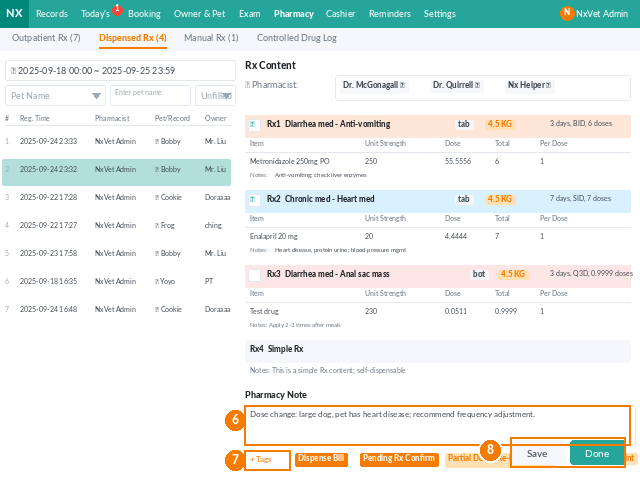
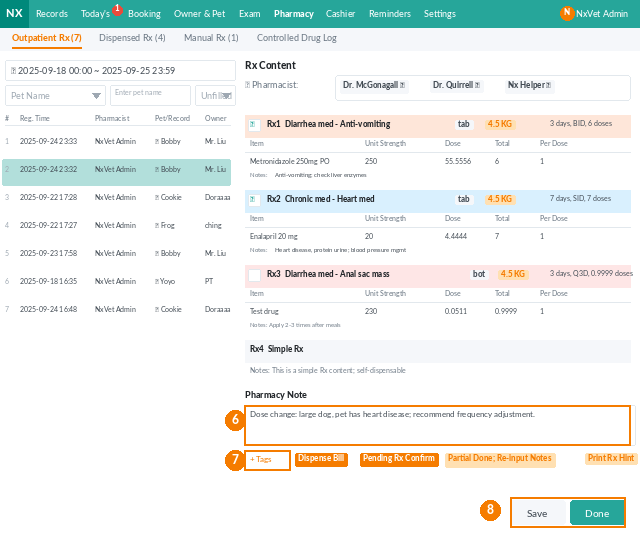
- Add Pharmacy notes for internal use — e.g., precautions, batch issues, or alternate forms used.
- Add Tags (custom disease or status tags) to keep the rest of the team in sync.
- Click Save to keep working, or Complete when the order is finished. The medical record updates the prescription status to packaged.
Surgical prescriptions
Surgical Rx work identically to outpatient prescriptions, but the dispensing queue is segmented so anesthesia and recovery teams can pull a clean view. Tag your surgery patients consistently (e.g., spay, orthopedic) and the panel filter does the rest.
Controlled drug tracking
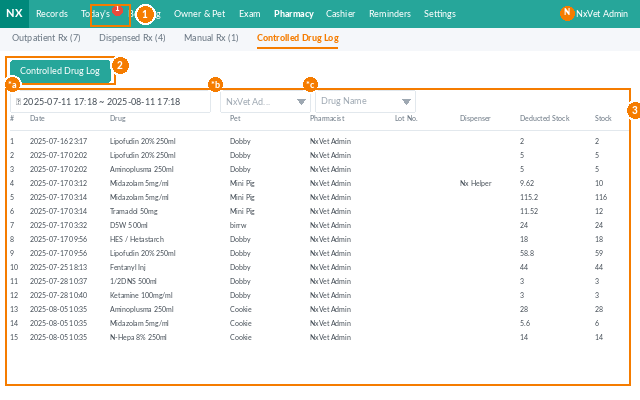
- Click Controlled Drug Details.
- Filter by time period, prescribing doctor, or specific drug.
- The list shows every dispense event: date, pet, prescribing vet, batch number, dispensing personnel, and quantity.
Use this view for monthly controlled-substance audits and reporting; everything you need for a regulator inspection is in one place.
Tip
Don’t click Complete until all medications for that Rx are physically prepared. The medical record reflects the prescription as packaged as soon as you submit, and front-desk staff may release the patient based on that status. Use Save for partial progress.