

Billing & Checkout: Settle Single or Multiple Transactions
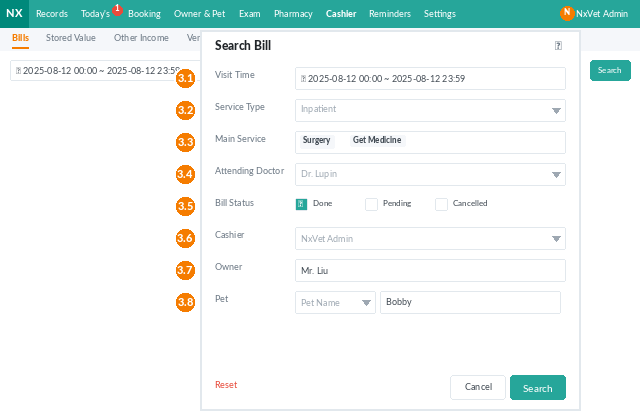
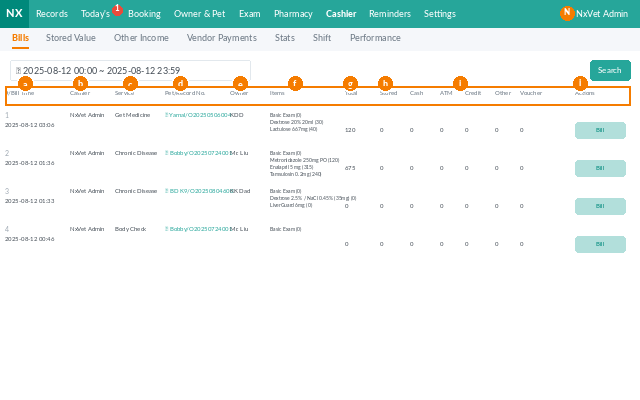
The Billing page in Cashier is where reception settles bills, applies discount codes, splits stored value with other payment methods, and prints receipts. You can search bills by registration date, type, service, vet, payment status, payee, owner, or pet, and check out one bill at a time or several bills in a single transaction.
How to access
- From the main menu, click Cashier.
- Click the Bills tab.
- Pick a time range, or click Search on the right for advanced filters.
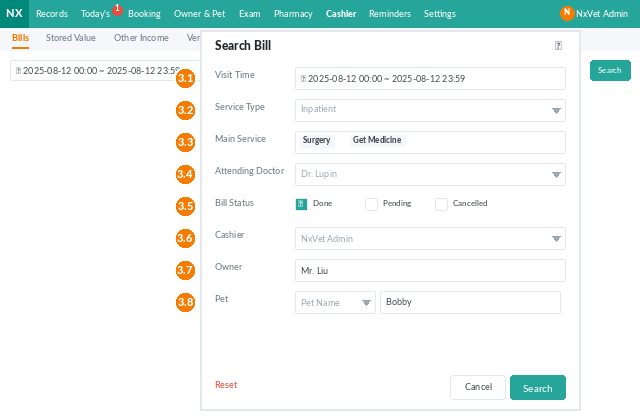
Advanced search options
- Registration time — search by registration or discharge time.
- Bill type — medical record, hospitalization, etc.
- Service items — general consultation, chronic medication, surgery, and so on.
- Attending veterinarian.
- Settlement status, Payee, Owner, or Pet.
Settling a single bill
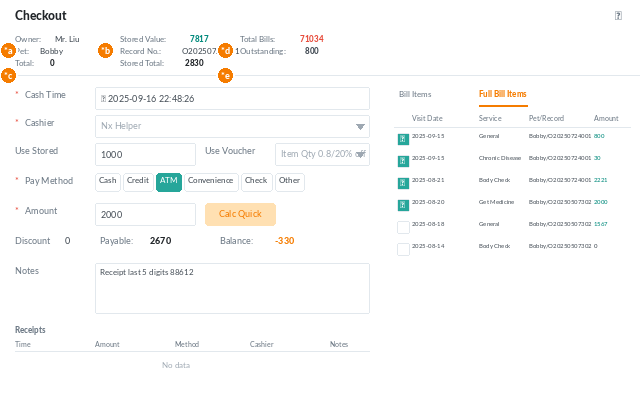
- Click the bill row to open the checkout screen.
- Click Bill Details to see every line item.
- Red-background items are not eligible for discounts.
- White-background items are eligible for discount codes.
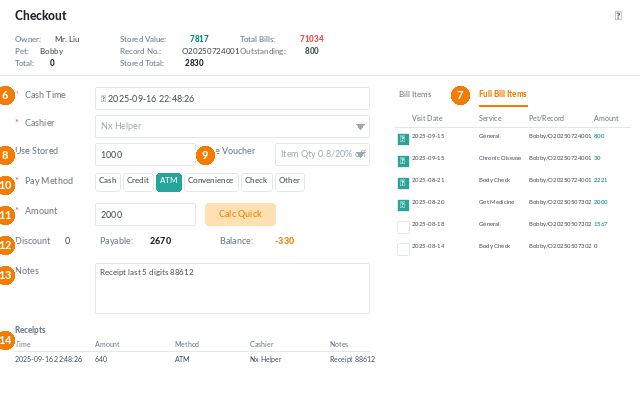
- Confirm or adjust:
- Collection time — defaults to now; edit if backdated.
- Collector — the staff member processing the payment.
- Use stored value — deduct from the owner’s prepaid balance (partial allowed).
- Use discount code — only applies to eligible items.
- Payment method — cash, credit card, ATM, or other.
- Payment amount — click Balance Payment to auto-fill the remaining balance, or enter a custom amount. Negative amounts are allowed for refunds.
- Add Remarks if needed (e.g., last 5 digits of card transfer).
- Confirm. The collection record at the bottom logs the time, amount, and collector.
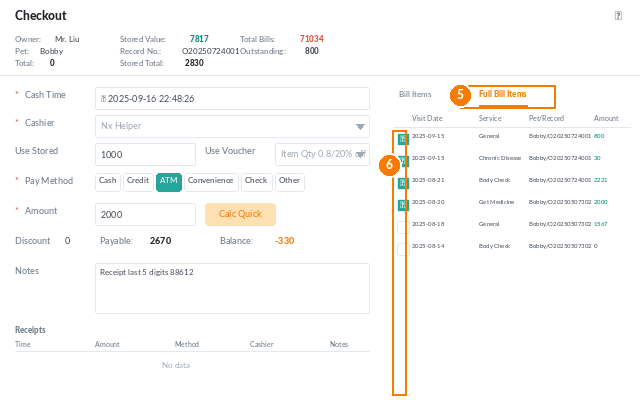
Settling multiple bills at once
- Click any bill from the same owner.
- Switch to the Arrears Details tab. Every outstanding bill for that owner is listed.
- Check the bills you want to settle together.
- Apply stored value and discount codes — they spread across eligible items in all selected bills.
- Confirm.
When settling multiple bills, you can’t enter negative amounts or partial payments. The full total must be paid in one go.
Printing bills
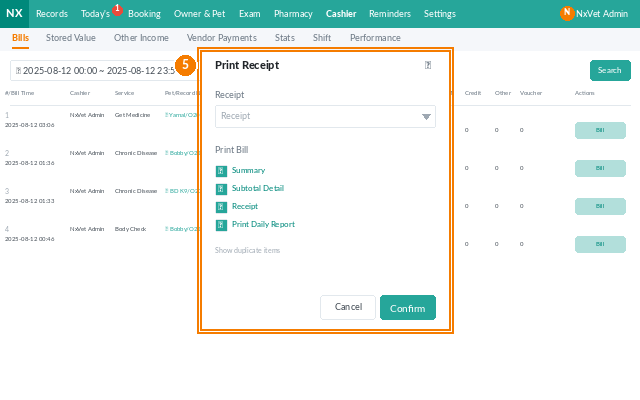
- From the Bills tab, click Print on the bill row.
- Choose what to include: medical record, prescription, bill, lab report, custom form, or standard form.
- Print or save as PDF for the owner.
Tip
Hospitalization bills only generate after discharge. Don’t look for them in the Bills tab while a pet is still hospitalized — the system finalizes the bill the moment you click Discharge on the medical record.