

Business Settings: Hours, Reservation Rules & Temporary Closures
Business Settings is where the clinic configures its operating schedule, online booking rules, and any one-off or recurring closures. The settings here cascade everywhere — calendar, online booking form on TerryMon Mini-Website and LINE@, and reminders.
How to access
- From the main menu, click Appointments.
- Click Business Settings.
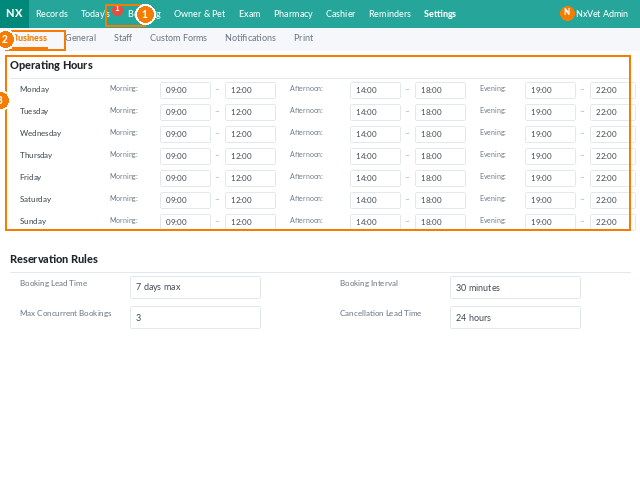
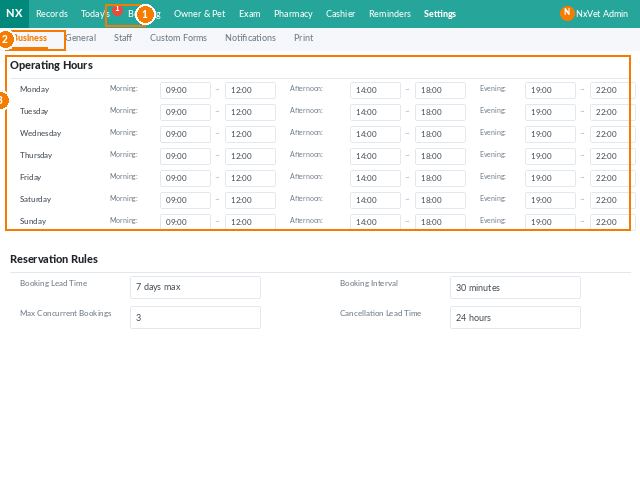
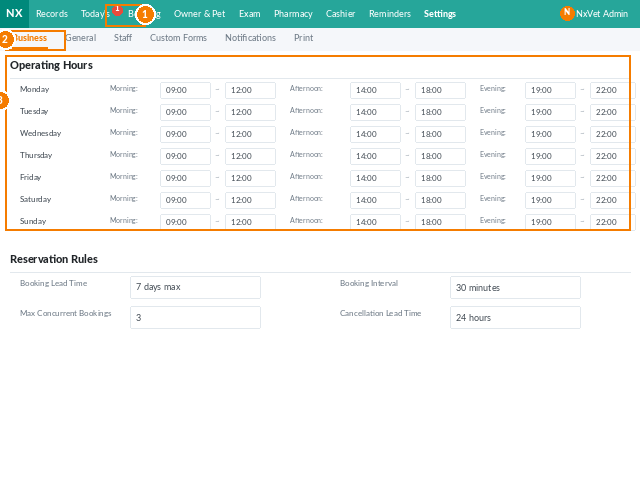
Setting business hours
- Click Edit next to Business Hours.
- For each weekday, set the opening and closing times. Leave a day blank to mark it as a regular closed day (e.g., Saturday/Sunday).
- Click Confirm. The online booking form updates immediately on TerryMon Mini-Website and LINE@.
The clinic’s self-built website (if any) does not sync — remember to update business hours there manually.
Fixed daily closure (e.g., lunch break)
- Click Add Closed Hours.
- Set the start and end times. Multiple closure windows per day are supported.
- Click Confirm.
To remove a closure window, click the trash icon next to it.
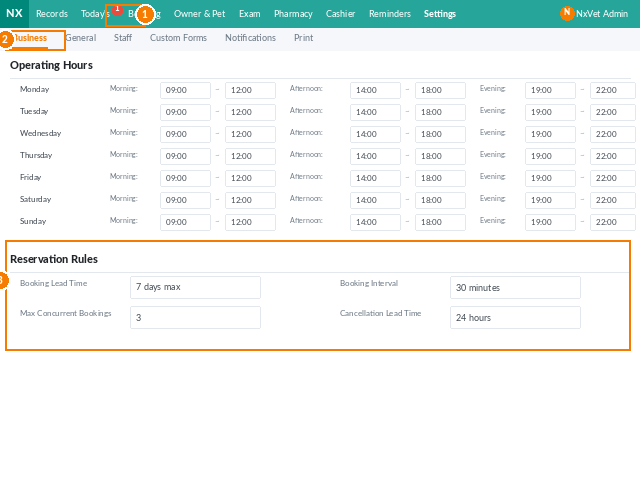
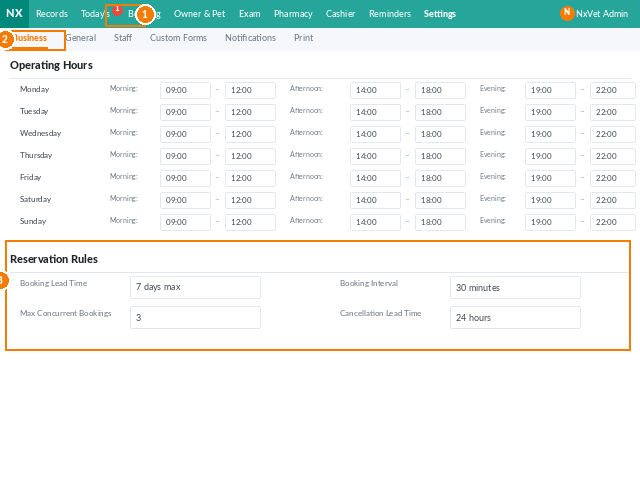
Reservation rules
Click Edit next to Reservation Rules to configure:
- Open for reservations — toggle online booking on or off entirely.
- Reservation duration (minutes) — the system blocks the calendar in increments of this length.
- Earliest reservation time (days) — minimum lead time. If set to 3, bookings must be at least 3 days out.
- Latest cancellation time (hours) — how many hours before the appointment owners can self-cancel.
- Reservation days open (days) — how far into the future bookings can be made (e.g., 14 days).
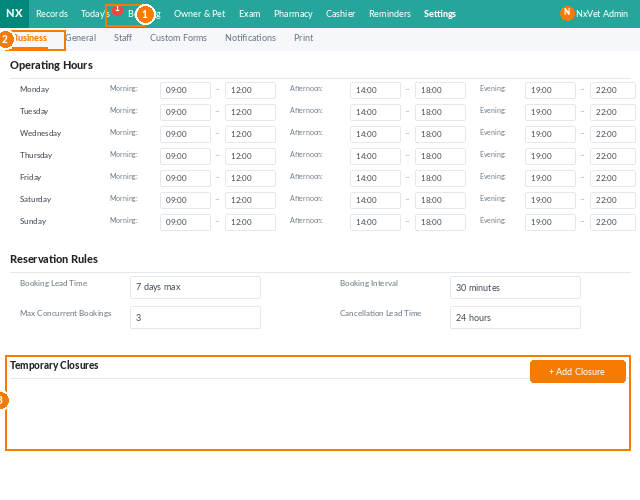
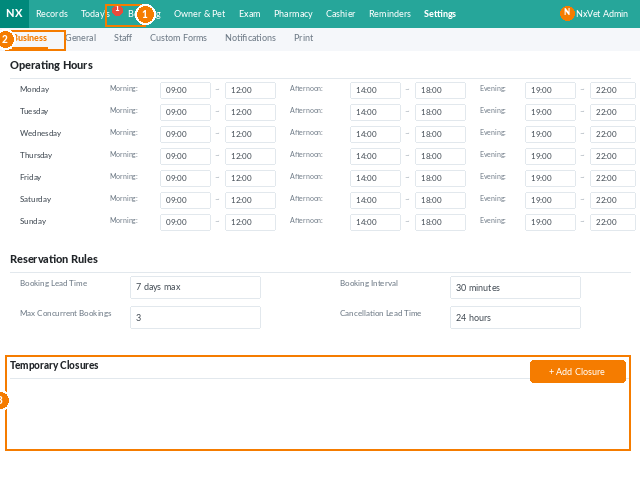
Temporary clinic closure
Three ways to add a one-off closure:
- From Business Settings, click Add Closed Time.
- From the calendar view (icon on the right), click the date you want to close.
- From the reservation list (list icon), pick the date.
For each closure, set:
- Date.
- Type:
- Close Appointments — no new appointments, but the clinic still sees walk-ins (e.g., schedule is full).
- Closed for the Day — clinic completely closed (e.g., staff trip, deep clean).
- Start / End time — for partial-day closures.
- Remarks — optional context for staff.
- Edit — click the closure on the calendar or list, change details, confirm.
- Delete — click the closure, click Delete.
Editing or deleting a temporary closure
Note: multi-day continuous closures must be set day-by-day — the system doesn’t support a date range in one entry.
Tip
For long-term Saturday closures during summer (or any seasonal pattern), use the Business Hours edit screen and leave Saturday blank. Don’t use Temporary Closure for repeating patterns — you’ll be entering closures forever.