

General Settings: Clinic Profile, Branches & Preferences
General Settings is where the clinic configures its identity, branches, branding, default behaviors, and integration credentials. Settings here are the foundation for everything else — consistent branding on receipts and reminders, branch separation for multi-location practices, and the integration keys for IDEXX, LINE@, and payment gateways.
How to access
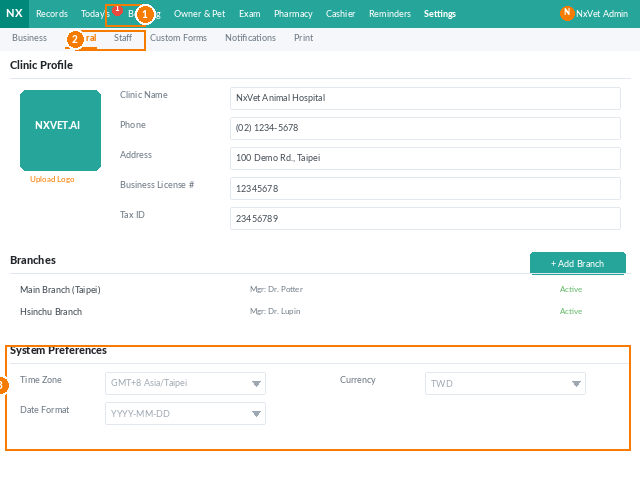
- From the main menu, click Settings.
- Click the General tab.
Clinic profile
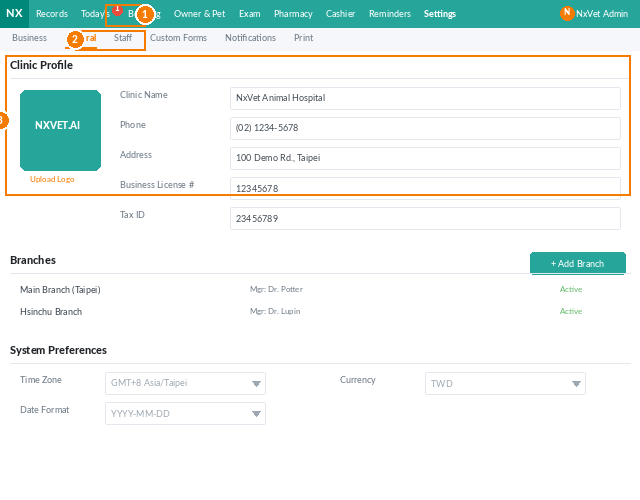
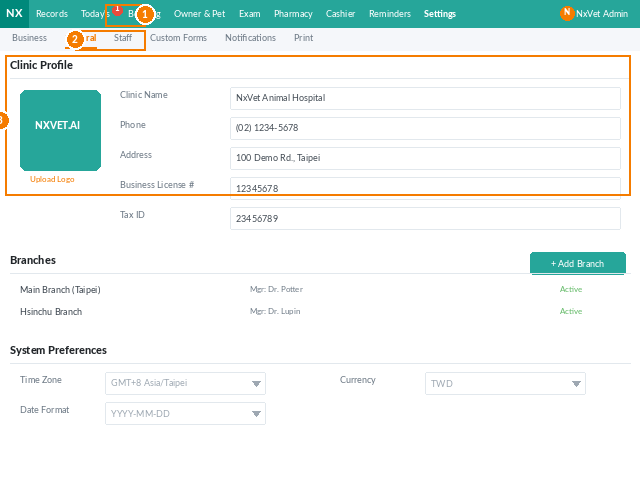
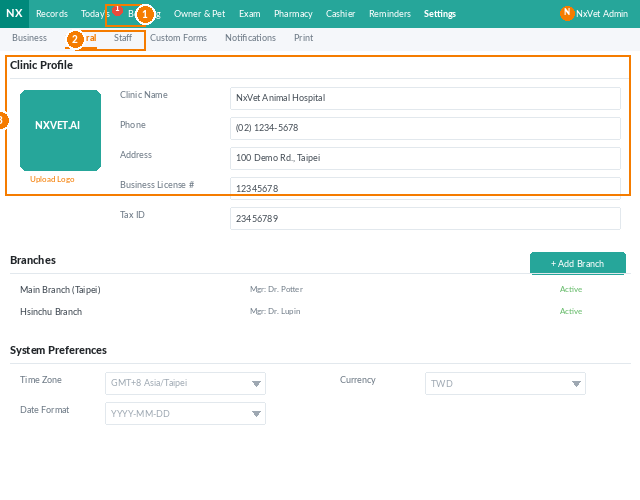
- Clinic name — appears on receipts, reminders, and the booking page.
- Logo — PNG or SVG; used on printed bills and email templates.
- Contact phone, email, address.
- Tax ID / business registration number.
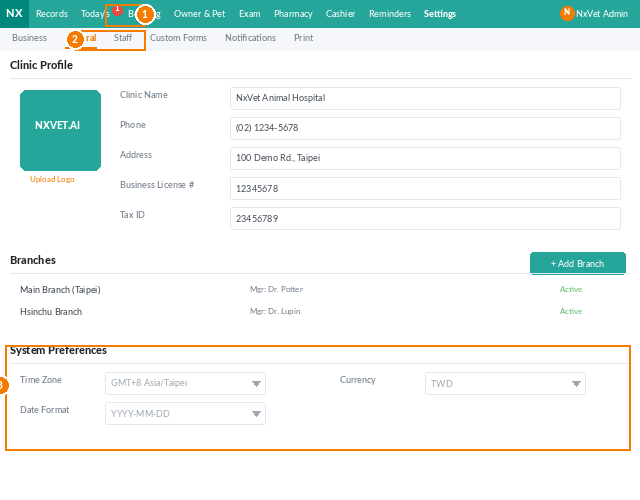
- Default currency and locale — affect number and date formatting throughout the system.
Branches (multi-location clinics)
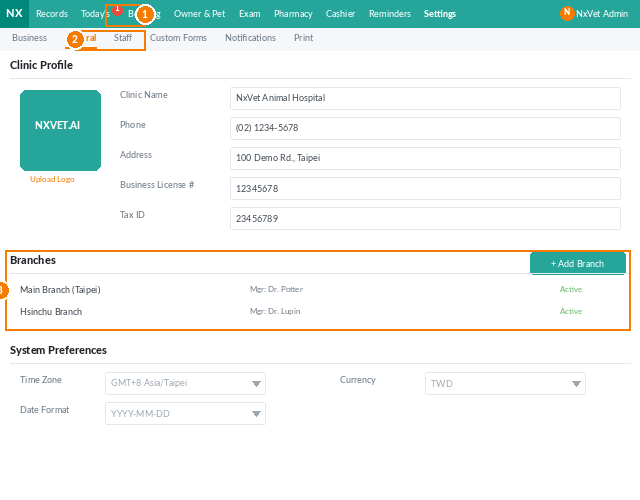
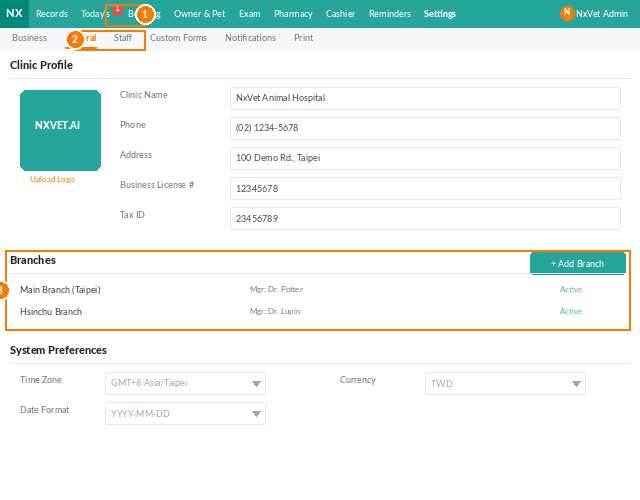
- Click + Add Branch.
- Fill in branch name, address, phone, and operating hours.
- Assign staff and inventory to the branch.
- Click Confirm.
Branches share owners and pets across the network — a customer registered at Branch A can walk in to Branch B and be recognized immediately. Inventory and billing are branch-scoped.
Default behaviors
- Medical record numbering — auto-generate pattern (e.g.,
{YYYY}{MM}{####}) or fully manual. - Receipt template — pick a default layout; per-receipt overrides still available at print time.
- Stored-value scope — cross-branch redemption allowed, or limited to the branch where it was purchased.
- Owner-pet privacy — whether owners can see their own records in the LINE@ portal.
Integrations
Configure API keys for:
- IDEXX — in-house lab instrument sync.
- LINE@ — broadcast and reminder channel.
- SMS provider.
- Email (SMTP).
- Payment gateway — if accepting card payments inside NxVet.
- Accounting export — QuickBooks, Xero, or CSV pipeline.
Tip
Settings changes propagate immediately. If a setting governs printed output (logo, footer, default receipt), generate a test bill right after changing it to confirm the result. It’s much cheaper to catch a typo on a test receipt than on 200 printed receipts.